 Taskbead
1. Getting started and signing in
Taskbead runs in any modern browser, so there is nothing to download. Open taskbead.com/app and choose how to sign in:
- Google: one tap with your Google account.
- Email link: type your email address and we send you a sign-in link. Open it on this or any other device; the screen updates by itself. There is no password to remember.
- Telegram: open @TaskBeadBot and tap Start, then Open. Taskbead also runs as a mini app inside Telegram.
When you sign up, Taskbead asks what you'll use it for and adds a few example tasks so the list isn't empty. Remove them whenever you like with Remove examples.
Use one account everywhere
Every sign-in method opens the same account. To add another, go to Menu › Settings › Connected accounts and tap Connect next to Google, Email or Telegram. At least one method always stays connected, so you can't lock yourself out.
2. Put it on your home screen, and turn on notifications
Installed, Taskbead opens full screen like any other app, starts quickly and keeps working offline.
iPhone and iPad
- Open taskbead.com in Safari.
- Tap the Share button (the square with an arrow).
- Choose Add to Home Screen, then Add.
Android
- Open taskbead.com in Chrome.
- Tap the ⋮ menu and choose Install app or Add to Home screen.
You may also see Install Taskbead in Taskbead's own menu. On a computer, use the install icon in the address bar of Chrome or Edge.
Notifications
- Open Taskbead from your home screen.
- Go to Menu › Settings › Notifications on this device and switch on Reminders and recaps here. Allow notifications when your phone asks.
- Under Where reminders go, pick Telegram, App notifications or Both.
Your daily rhythm
In Settings you can also switch on a Morning plan (your top 3 for today at 8:00), an Evening recap (what you finished, at 21:00, silent on quiet days) and a Weekly recap (Mondays at 8:00). They follow your time zone, and nothing is sent between 22:00 and 07:00.
3. Adding tasks with quick add
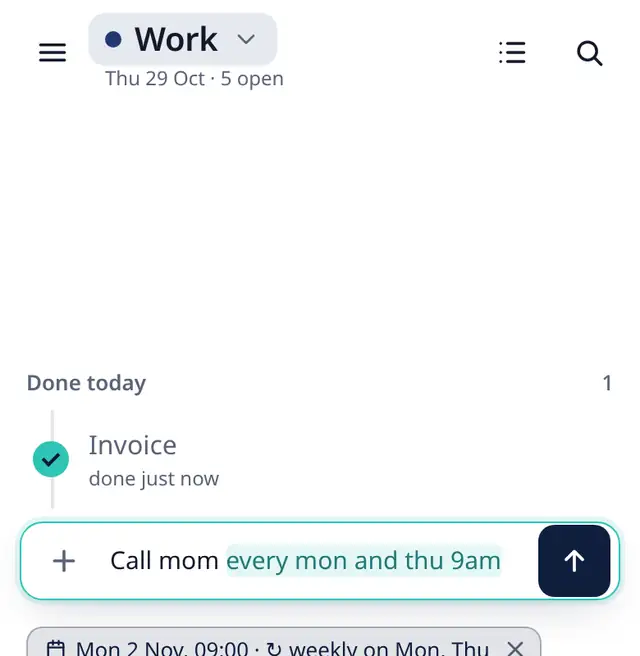
Everything starts in the What's next? box. Type the way you talk: Taskbead spots dates, times, tags and repeats and shows them as small chips under the box. If it guessed wrong, tap the × on that chip. Tap the arrow (or press Enter) to add the task.
| You type | What you get |
|---|---|
essay due fri 3pm #uni | “essay”, due this Friday at 15:00, tagged #uni |
call mum tmr 7pm | Tomorrow at 19:00 (tomorrow, tmr and tmrw all work) |
read chapter 4 tonight | Today at 20:00. today and eod work too |
invoice client in 3 days | Three days from now. Also in 2 weeks, in 2 hours, in 30 min |
dentist 12 nov 10:30 | 12 November at 10:30. nov 12 and 12/11 (day first) work too |
plan trip next week | Next Monday. Also next fri, this weekend, noon, at 14 |
study group thu 4pm-6pm | A two-hour time block on Thursday (see time blocking). 2pm for 90 min works too |
A task with a date but no time shows no time and doesn't ping you at a set hour. Add a time when you want a reminder at that moment.
Repeating tasks
Say how often and Taskbead makes one task that comes back: every day or daily, every weekday, every other day, every 3 days, every mon and thu, every 2 weeks, every 15th, monthly, every 3 months, yearly. Example: gym every mon and thu 9am. When you finish one, the next one appears with the same time. You can also open a task and pick from the Repeat menu.
Tags, amounts and your own fields
#wordadds a tag, like#unior#client. Tap a tag to see every task with it.- If the workspace has a money field (see custom fields),
$500or€500fills it in:Book the venue $500. name:valuefills any other field by its name:category:food,paid:yes.
Habits from quick add
A count plus how often makes a habit instead of a task: water 3x daily, read twice a day, gym 3 times a week, meds am pm. (A plain every day stays a repeating task.) Habit phrases work in English; in other languages use the Habits form.
mañana, besok or 明天.4. Today, Up next and finishing tasks
Below the box is Up next. The card at the top shows what's due today and tomorrow; everything else waits underneath, grouped by when it's due, so you see what matters now. Use the chips (All, and one per bucket) to narrow the list.
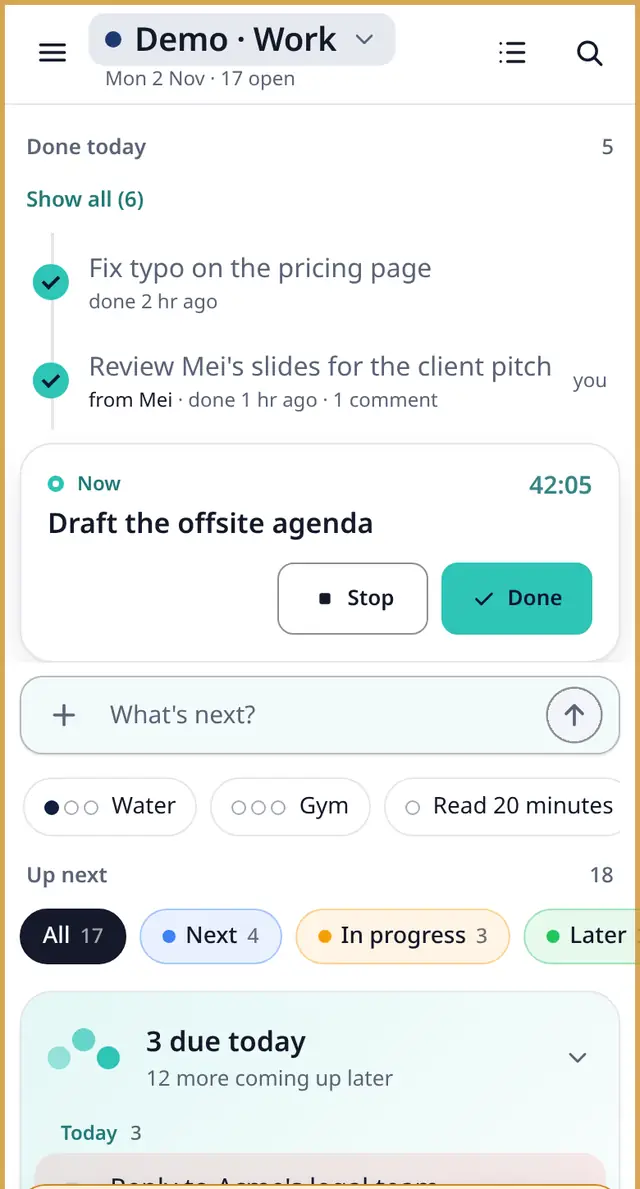
- Finish a task: tap its circle. You get a small tick and the task moves up above the box, where today's finished tasks collect. Tapped the wrong one? Tap Undo.
- Start a task: swipe it to the left and tap Start. It becomes the Now card with a focus timer; tap Done or Stop when you're finished. You can hide the timer in Settings (Show timer).
- Delete: swipe left and tap Delete.
- Running late? A task from yesterday that's still open offers Move to tomorrow. No red warnings, no guilt.
- Search: the magnifier at the top right searches your tasks and shows your tags.
Every task you've finished is kept in Menu › Settings › Archive and export, where you can reopen one.
Celebrations are your choice: Settings › Celebrations offers Tick + confetti, Tick only, or Off. Confetti is always off when your device is set to reduce motion.
5. Task details, subtasks and reminders
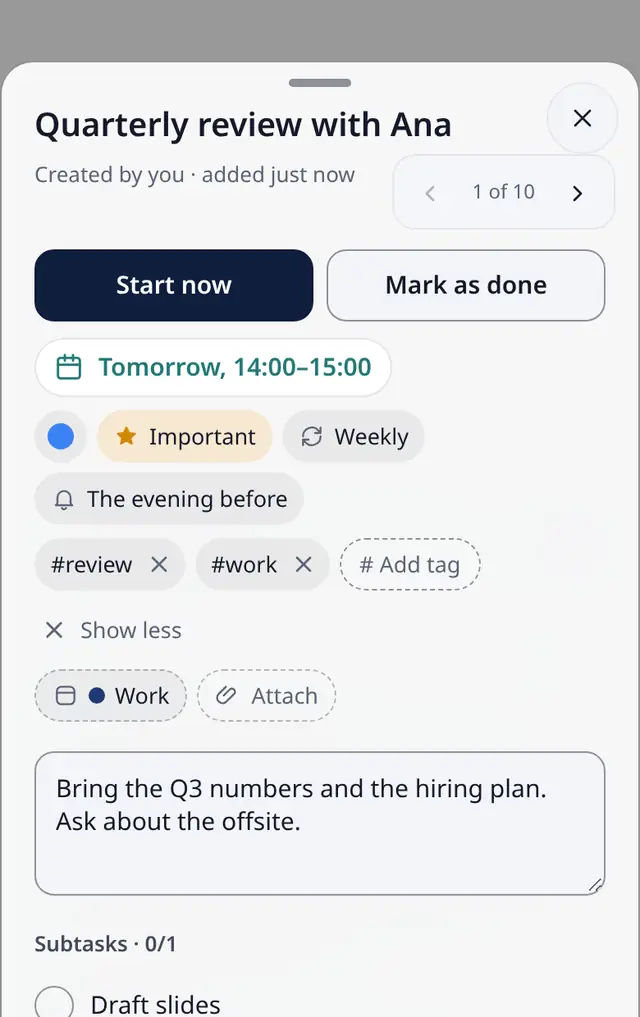
Tap any task to open its details. Here you can change the title and due date, add notes, set a repeat, and attach files or photos (a picture of the whiteboard after class, a receipt).
Subtasks
Tap Add a subtask to break a big job into small steps. Each step gets its own circle and stays with the task wherever it goes. If you finish a task that still has open steps, Taskbead asks whether to complete them too.
Reminders
Every task with a due time can remind you. Open the Reminder menu and choose At the due time, The evening before, or turn it off. Reminders go where you chose in Settings: Telegram, notifications on this device, or both. In Telegram you can snooze a reminder from the message.
More in the details sheet
- Attach: files up to 25 MB each on Free (100 MB on Plus and Team). For safety, programs and scripts (like .exe, .bat or .apk) can't be attached.
- Tags: add or remove tags with Add tag.
- Workspace and Bucket: move the task to another workspace or bucket.
- Share link: makes a read-only link to the task. Anyone with the link can see it; make a new link to stop the old one working.
- Important (priority) and Comments on every task appear in Pro mode.
6. Buckets, Board, Calendar and time blocking
Every workspace has four views, all free: Bead (the list), Board, Calendar and Dashboard. Switch with the view button at the top right.
Buckets
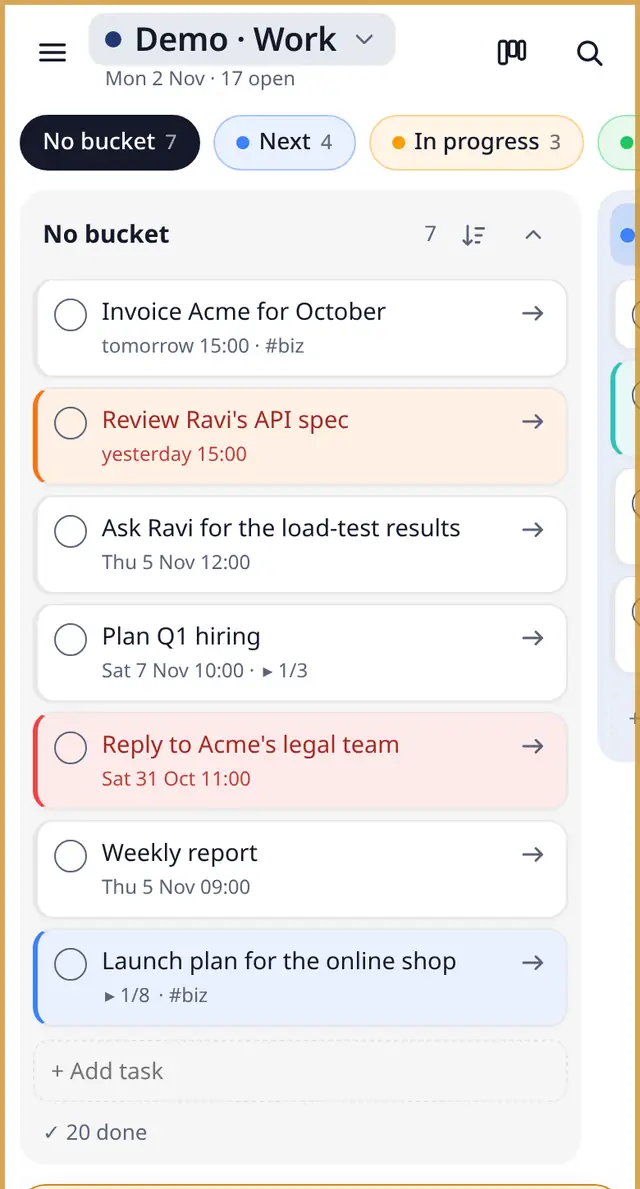
Buckets are simple groups inside a workspace, like one per subject, client or stage (To do, Doing, Review). Add one with + New bucket (in the chip row above Up next, or on the Board) and give it a name and colour. Tap a bucket chip to see only its tasks; new tasks you add go into the selected bucket. To move a task, drop it on a chip or pick a bucket in the task's More…. Deleting a bucket keeps its tasks in the workspace, without a bucket.
Board
The Board shows one column per bucket. On a phone you see one column at a time; swipe or tap the chips at the top to move between them. Press and hold a card to drag it to another column, or use Move to….
Calendar
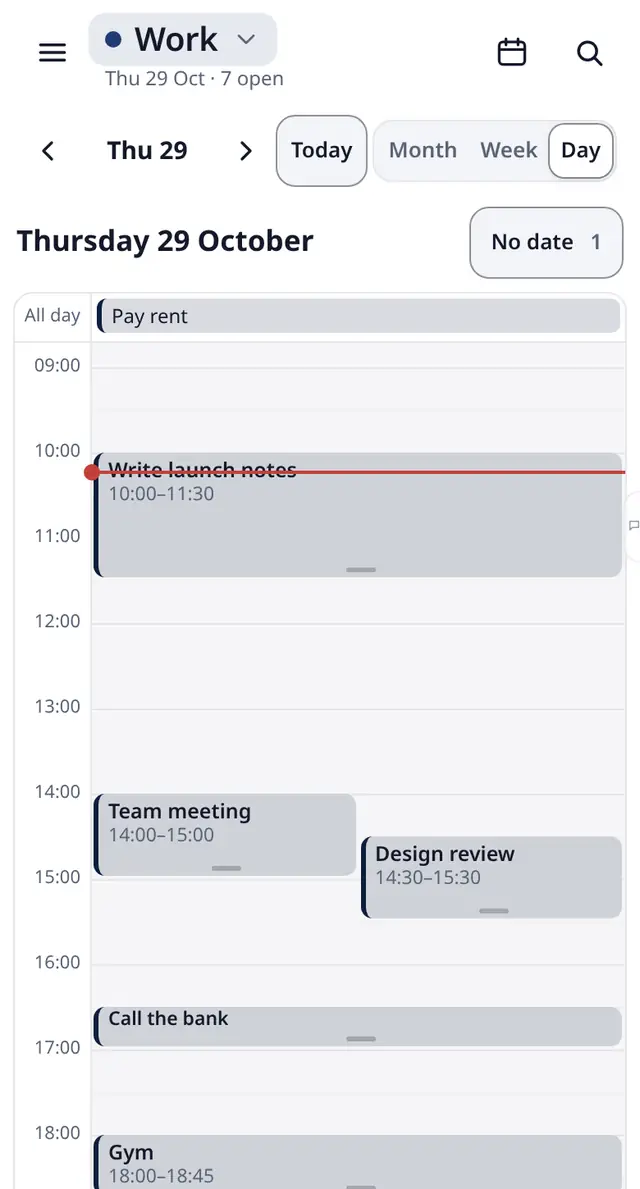
The Calendar has Month, Week and Day views. Month shows tasks as dots: tap a day to see its tasks, swipe for the next month. Drag a task onto a day (or onto an hour in Day and Week) to plan it. No date lists the tasks that still need a day.
Time blocking
Give a task a start and an end, like study group thu 4pm-6pm or essay 9am for 2h. In the Day view it shows as a block. Press and hold to move it, drag its bottom edge to make it longer, or tap an empty slot to add a task right there.
7. Google, Apple and Outlook calendars, and class deadlines
Open Menu › Settings › Calendars and class deadlines. There are three things you can do:
- Show your tasks in your calendar. Tap Create calendar link (for all workspaces or one), then Add to Google Calendar, Add to Apple Calendar or Add to Outlook. Tasks with a due date appear there and update by themselves; calendar apps check for changes every few hours. The link is private. If you shared it by mistake, make a new one: the old one stops working.
- Show your calendar events next to your tasks. Paste the private iCal (ICS) link of a Google, Outlook or Apple calendar. Events appear greyed out and read-only, only you see them, and they never show in shared views. Up to 5 calendars.
- Import class deadlines. Paste the calendar feed link from Canvas, Moodle, Blackboard or Google Classroom. Assignments become tasks with their due dates, in the workspace you pick. Up to 5 class calendars. Removing a class calendar keeps the tasks it added.
Each option explains where to find the link in your calendar app.
9. Habits
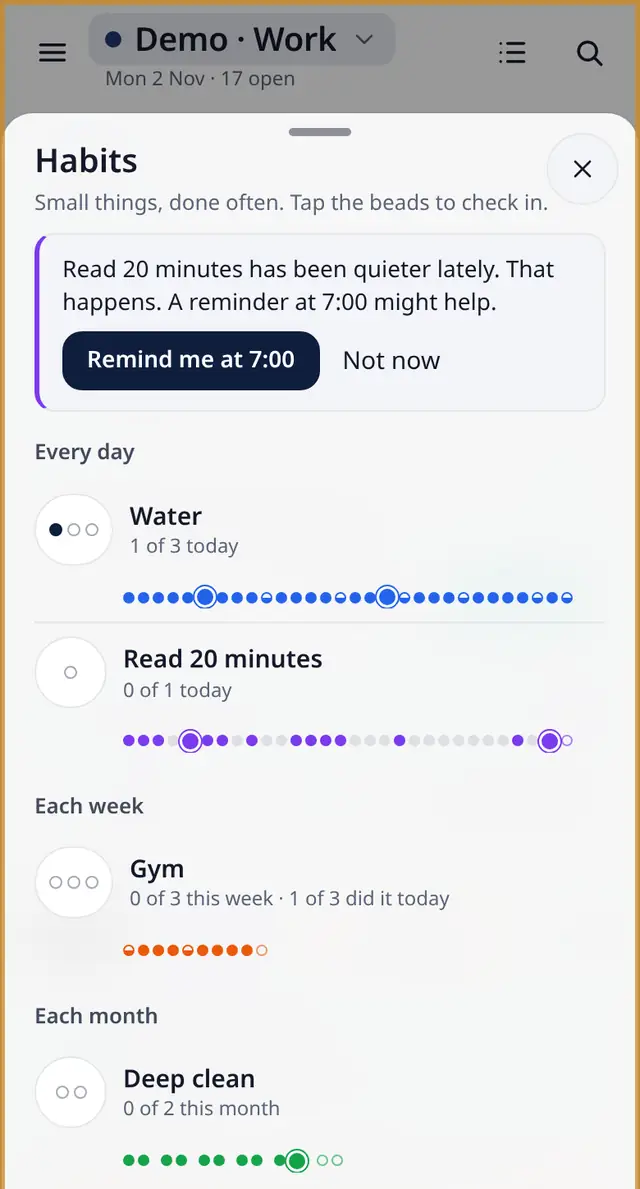
Habits are the small things you want to do often, next to your tasks. Open Menu › Habits and tap New habit, or use quick add (water 3x daily).
Kinds of habit
- Every day
- Once or several times a day, like water 3 times a day or meds morning and evening.
- Some days a week
- A number of times a week, like the gym 3 times a week, optionally on planned days.
- Some days a month
- A number of days a month, like a deep clean twice a month.
- When did I last
- For things like changing the bedsheets or calling home. It shows how long it's been, with an optional nudge after a number of days.
- Quit something
- For habits you want to stop. Every day counts as kept; checking in records a slip. A slip never wipes out the days you kept.
Checking in
Today's open habits sit in a slim strip above Up next: tap one to check in. (Turn the strip off on the Habits page with Show today's habits in the list.) Tap the check-in circle on a habit's page to add one more. Tapped by mistake? Tap Undo, or Undo last check-in on the habit's page.
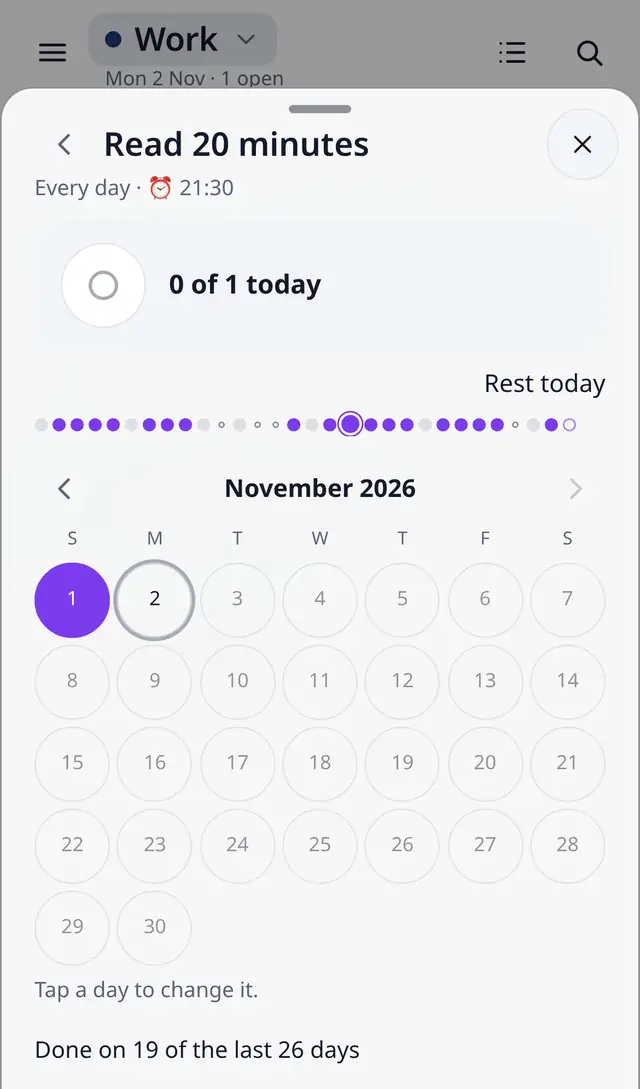
Having an off day? Tap Rest day. A rest day never counts as a miss.
The bead necklace
Each habit grows a necklace: one bead for every day you do it, in a colour you choose, with a bigger knot every tenth bead. Missed days are quiet grey beads. Nothing ever resets, so one bad week never wipes out your progress. Open the year view to see the whole year.
Insights and reminders
- Once your habit is a couple of weeks old, you'll see one gentle insight a week, like the weekday you're most consistent or the time of day you usually check in. It's worked out in the app from your own check-ins, with no AI, and it only ever encourages.
- Each habit can have up to 10 reminder times. If a habit has gone quiet, Taskbead may suggest a reminder time; tap it to add, or Not now.
- Archive a habit you're pausing; bring it back any time with its history.
Do it together
- Open a habit and tap Do it together.
- Choose the display name others will see (they see only that name, nothing else) and tap Create invite link.
- Send the link. It works for 7 days, and friends need a free account to join.
Each person checks in on their own, and the habit shows everyone's necklaces stacked together, with “2 of 3 did it today”. Only the person who started it can change the name and how often, invite or remove people, or stop the link. Anyone can leave whenever they like and keeps their own beads. Up to 20 people per shared habit.
10. Dashboards
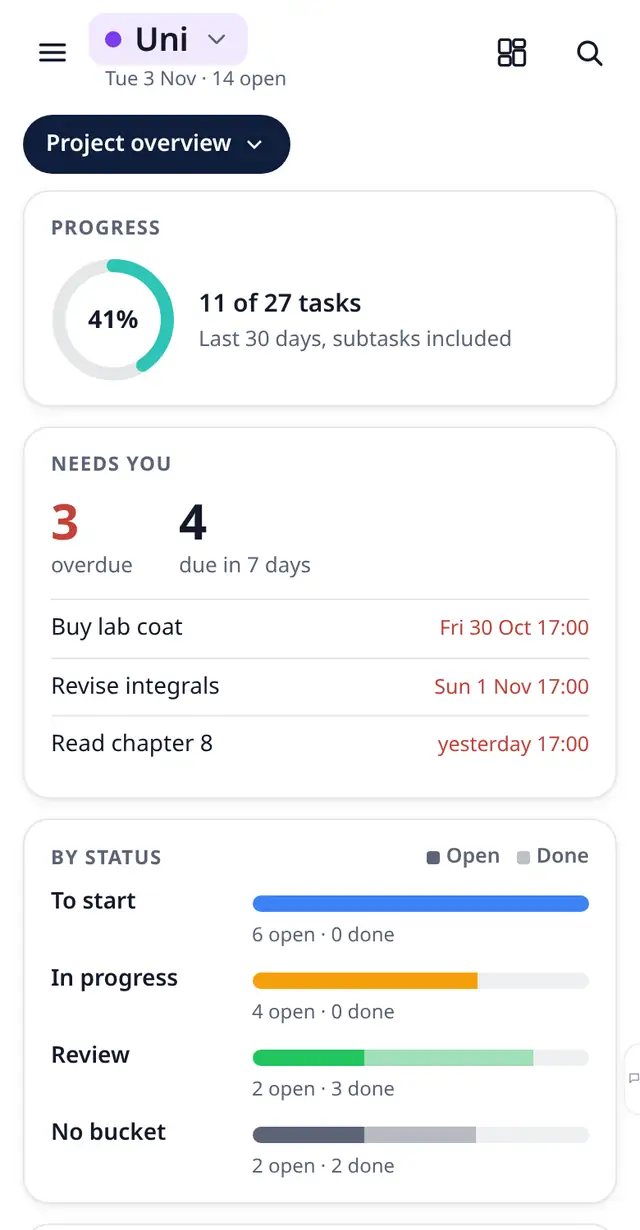
Open the view button and choose Dashboard. The first time, pick a ready-made layout for this workspace. Change it any time with Change dashboard.
- Project overview
- Progress, what needs you, status by bucket, a four-week timeline of due dates, done per day, recent files and activity.
- Event countdown
- Days left to your big day and what is still open before it. Tag a task
#milestoneor pick one to count down to. - Study and exam
- Deadlines, progress per subject tag (tag tasks like
#maths) and your habits heatmap. - Team load
- For shared workspaces: who has what, what is late and who is working now.
- Budget
- Appears once the workspace has a money or number field: see custom fields.
Tap any card to open your list filtered to exactly those tasks. Cards with nothing to show stay hidden and tell you what would fill them. Dashboards are free on every plan and work offline.
11. Custom fields and the Budget dashboard
Add your own details to the tasks in a workspace: a budget, a status, a start date. Open a task, tap More…, then Custom fields, and tap Add field. Start from a common one (Budget, Start date, Status, Paid) or make your own:
- Money, in your currency
- Number, with an optional unit
- Date. A Start date makes the dashboard timeline draw a bar from that date to the due date
- Choice, with coloured options like Venue, Food, Photos
- Checkbox, like Paid
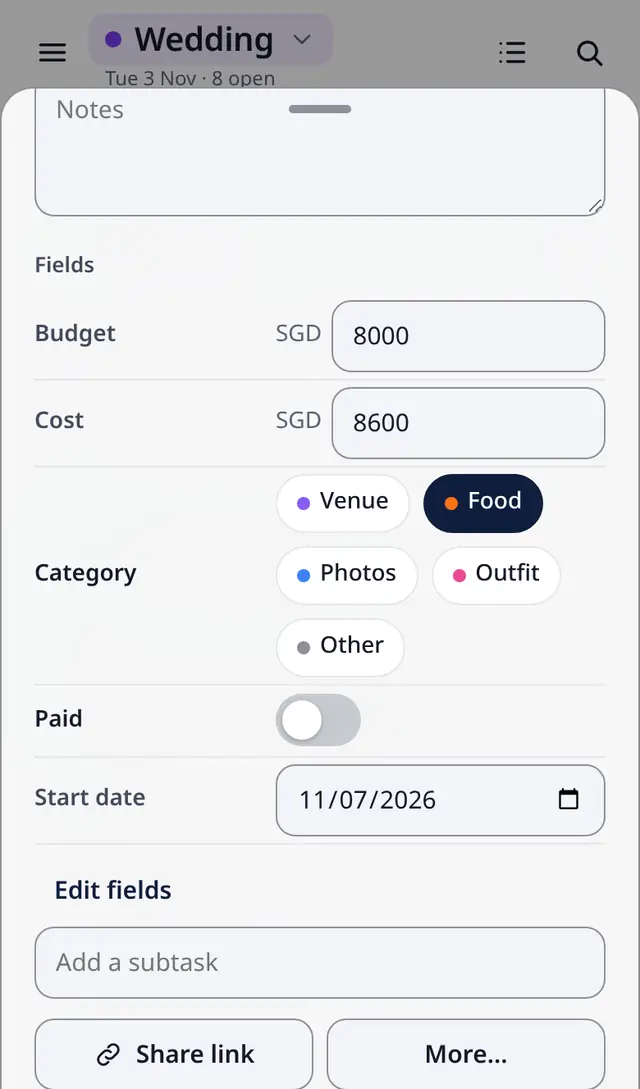
Fill them in on the task, or from quick add: Book the venue $500, category:food. You can show up to two fields as chips on your list and board. Only this workspace gets its fields, and a workspace with no fields looks exactly as before. A field's type can't be changed later; add a new field instead.
The Budget dashboard
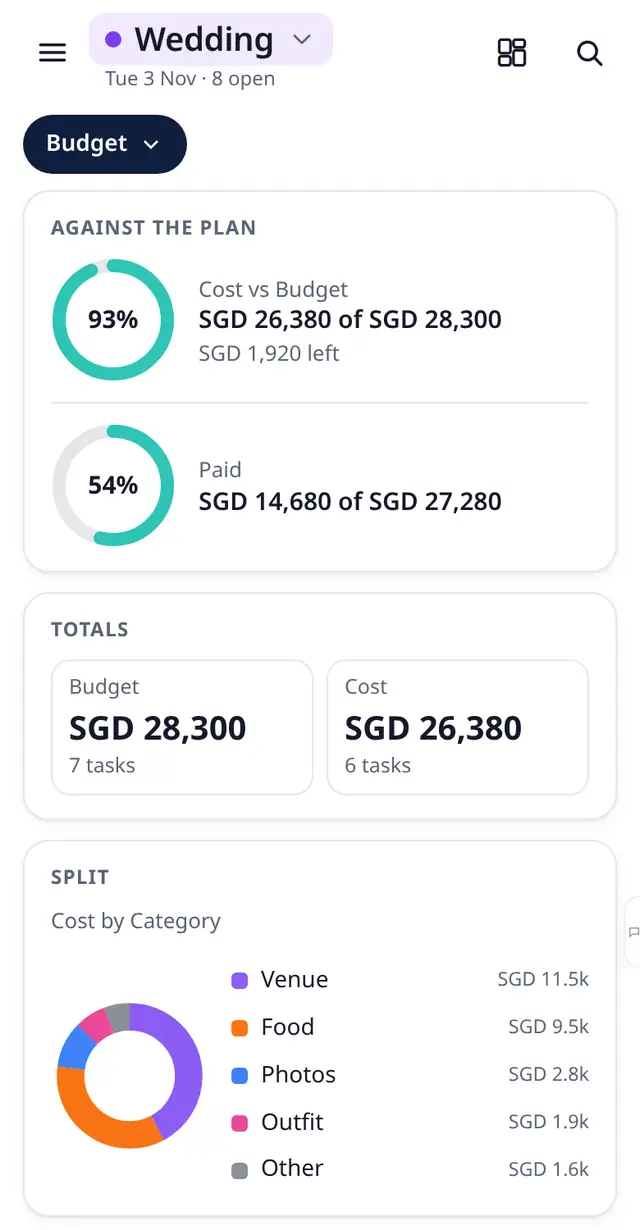
Choose Budget on the Dashboard to see spending against the plan, totals, a split by category, the biggest items and what's still unpaid. Tap any of them to see those tasks.
The Wedding, Event, Moving, Renovation, Semester, Client and Budget templates come with fields already set up. Custom fields are free on every plan, up to 50 per workspace, and they're included in the CSV export and for AI assistants.
12. Telegram
Open @TaskBeadBot and tap Start. Open shows the same Taskbead inside Telegram, with the same tasks, workspaces and reminders.
- Forward any message to the bot and it becomes a task, so that “can you send the slides by Wednesday?” from a group chat doesn't get lost. You can also just type a task to the bot, with dates and tags as in quick add.
- Already using Taskbead on the web? Connect Telegram in Settings › Connected accounts, then press Start once in the bot so it can message you.
- Disconnecting Telegram keeps your tasks and account; reminders then stop coming to Telegram.
Bot commands
| Command | What it does |
|---|---|
/start | Open Taskbead |
/today | Your open tasks |
/done | Mark a task done |
/habits | Today's habits, with a check-in button each |
/morning, /evening, /weekly | The 8am plan, the 9pm recap and the Monday recap on or off |
/reminders | Due-time reminders on or off |
/tz | Set your time zone |
/feedback | Send us feedback |
/help | How it works, and every command |
/deleteme | Erase everything about you |
News and tips: t.me/taskbead.
13. AI assistants (Claude, ChatGPT, Cursor and others)
Connect an AI assistant and ask it about your tasks in plain words: “What's due this week?”, “Add ‘submit lab report’ for Friday”, or “I just had two glasses of water” to check in a habit.
- In your AI app, add a connector (also called a remote MCP server) with the address
https://taskbead.com/mcp. - Taskbead opens: sign in, choose what it can see, and tap Allow.
An assistant can see, add and update tasks, comment, and check in habits. It can't delete tasks, share them, invite people, change settings or pay for anything, and every change it makes shows in the activity log with a bot label. You can hand a task to an assistant from the task's Assign to list.
For scripts and automations, switch to Pro mode and create a named API key in Settings (2 keys on Free, 10 on Plus and Team). Plus and Team can also send instant notifications to your tools (webhooks). Connecting assistants works on every plan, including Free, and you can revoke access anytime.
Step-by-step setup for each app, the tool list and the REST API: Taskbead for AI agents.
14. Simple and Pro mode
Taskbead starts in Simple mode: calm and uncluttered. Pro mode adds comments on every task, the Activity log with undo, Important (priority), keyboard shortcut hints, denser rows, and AI agents and API keys. Both are free on every plan.
Switch with Menu › Switch to Pro (or Switch to Simple), or the Pro mode switch in Settings. Nothing is lost when you switch back.
Keyboard shortcuts on a computer
N new task · / search · W next workspace · M menu · Esc close · ? the full list.
Make it yours
Settings has 9 themes (Light, Dark, Paper, Forest, Dusk, Sakura, Tide, Graphite, or follow your system) and 8 accent colours, all free, plus your language (20 languages), time zone, name and photo. Menu › Badges collects small milestones; only you see them unless you choose to show them, and you can hide badges completely.
15. Free and Plus
The Free plan is permanent, with no ads and no card needed. Plus and Team add more room when you need it.
| Free | Plus | Team | |
|---|---|---|---|
| Price | $0, forever | $1.99 a month or $18.99 a year | $4.99 per person a month or $39.99 per person a year |
| Tasks and reminders | Unlimited | Unlimited | Unlimited |
| Workspaces | 3 | Unlimited | Unlimited |
| Active habits | 10 | Unlimited | Unlimited |
| Files | 100 MB, up to 25 MB each | 10 GB, up to 100 MB each | 50 GB, up to 100 MB each |
| People per workspace | 3 | 10 | 50 |
| API keys | 2 | 10 | 10 |
| Webhooks for agents | No | Yes | Yes |
| Share images without the Taskbead mark | No | Yes | Yes |
Prices in US dollars, plus applicable tax.
Free on every plan: List, Board, Calendar and time blocking, all dashboards, custom fields (up to 50 per workspace), Simple and Pro mode, themes, templates, Telegram, calendar links and AI assistants.
To upgrade, open Menu › Settings and tap your plan. You can cancel anytime.
TRYPLUS for your first month of monthly Plus free, one time per account. Enter it in Settings › Plan under I have a promo code. Checkout asks for a payment method. After the free month, Plus renews at $1.99 a month plus tax unless you cancel.16. Privacy, export and deleting your data
- Your tasks are stored on Cloudflare's network and are yours. Taskbead is paid for by optional upgrades, never by ads or by selling your data.
- Export: Menu › Settings › Archive and export › Export all tasks as CSV downloads every task (with your custom fields), ready for a spreadsheet.
- Delete: Settings › Danger zone › Delete my data erases all your tasks, files, comments, connections, workspaces and settings. In Telegram, send
/deleteme. This can't be undone. - Sessions: Settings › Log out all web sessions signs out every other browser within a minute.
- People you share with see only the tasks you share and the name you chose. Calendar links you paste are never shown in full after saving.
Details: Privacy policy · Terms · Refunds.
17. FAQ
- Is Taskbead really free?
- Yes. The Free plan is permanent: unlimited tasks and reminders on every device, with no ads. Plus and Team add more room.
- Do I need Telegram?
- No. Taskbead is a full web app; sign up with Google or your email. Telegram is an extra way in.
- Does it work offline?
- Yes. Changes you make offline are saved and sync when you're back online. Attachments and comments need a connection.
- I'm not getting reminders.
- Check Settings › Where reminders go. For app notifications, switch on Notifications on this device (on iPhone, open Taskbead from the Home Screen first). For Telegram, press Start once in @TaskBeadBot. Make sure the task has a due time, not just a date, and its Reminder isn't Off.
- A date came out wrong in quick add.
- Tap the × on the date chip before adding, or open the task and pick the date. Numeric dates are read day first:
12/11is 12 November. - What happens to my habit if I miss a day?
- Nothing resets. The day becomes a quiet grey bead, and every bead you earned stays. Mark planned breaks as rest days.
- Can I use Taskbead with my class or team?
- Yes. Invite people under Menu › People, share tasks with them, and use the Team load dashboard to see who has what.
- How do I change my language?
- Settings › Language. Taskbead is available in 20 languages.
- How do I contact you?
- Use Menu › Send feedback, email hello@taskbead.com, or send
/feedbackto the bot.